Section VI Boys Ice Hockey Scorekeeper Certification Course
This is a requirement for:
-
All NFOA scorekeepers
-
Any off-ice official who wishes to work games must complete this certification.
-
Rodney will not be assigning games to anybody who does not complete the online exam.
-
-
At least one coach from each Section VI Boys Hockey team (ideally whoever is responsible for handling the iPad) must complete the certification quiz as well.
After reading through the documentation below, please visit:
https://certification.digitalscoresheets.com/quiz.php
There you will take a quiz reviewing the important information regarding protocols.. after scoring a 100% you will be able to enter your name and email.
The website will send a confirmation email to yourself, Rick Brooks and Rodney Hogg via email.
You can keep this link for reference; if anything changes within the app's user interface we'll update the documentation below.
[Coaches] Preparing iPads for the season
-
All iPads should have their lock code set to 1776
-
The National Anthem must be loaded onto the iPad; if it is not, it must be uploaded before your first game.
[Coaches] How to enter lineups through the website
Coaches are responsible for submitting their lineups through their team dashboard at least one hour prior to the start time for each game.
This can be done at any time - you do not have to wait until the day of, or just before the contest.
Previously we had done this through the app but we’re going to do it through the website for simplicity’s sake moving forward.
To submit your lineup, please follow the steps below:
- Login to highschoolsports.org and open your team’s profile page
- Open the schedule tab
- Scroll down to the relevant contest and click the “Edit” button
- Select the “Edit Lineup” option
- Fill out the form as necessary and click the blue “Save lineup” button
Lineups can be re-submitted as many times as necessary.
[Coaches] Preparing the iPad for the Scorekeeper
How to download a contest onto your iPad:
- This is the responsibility of the home team's head coach.
- The away team's head coach should have their iPad available just in case something goes wrong with the home team's device.
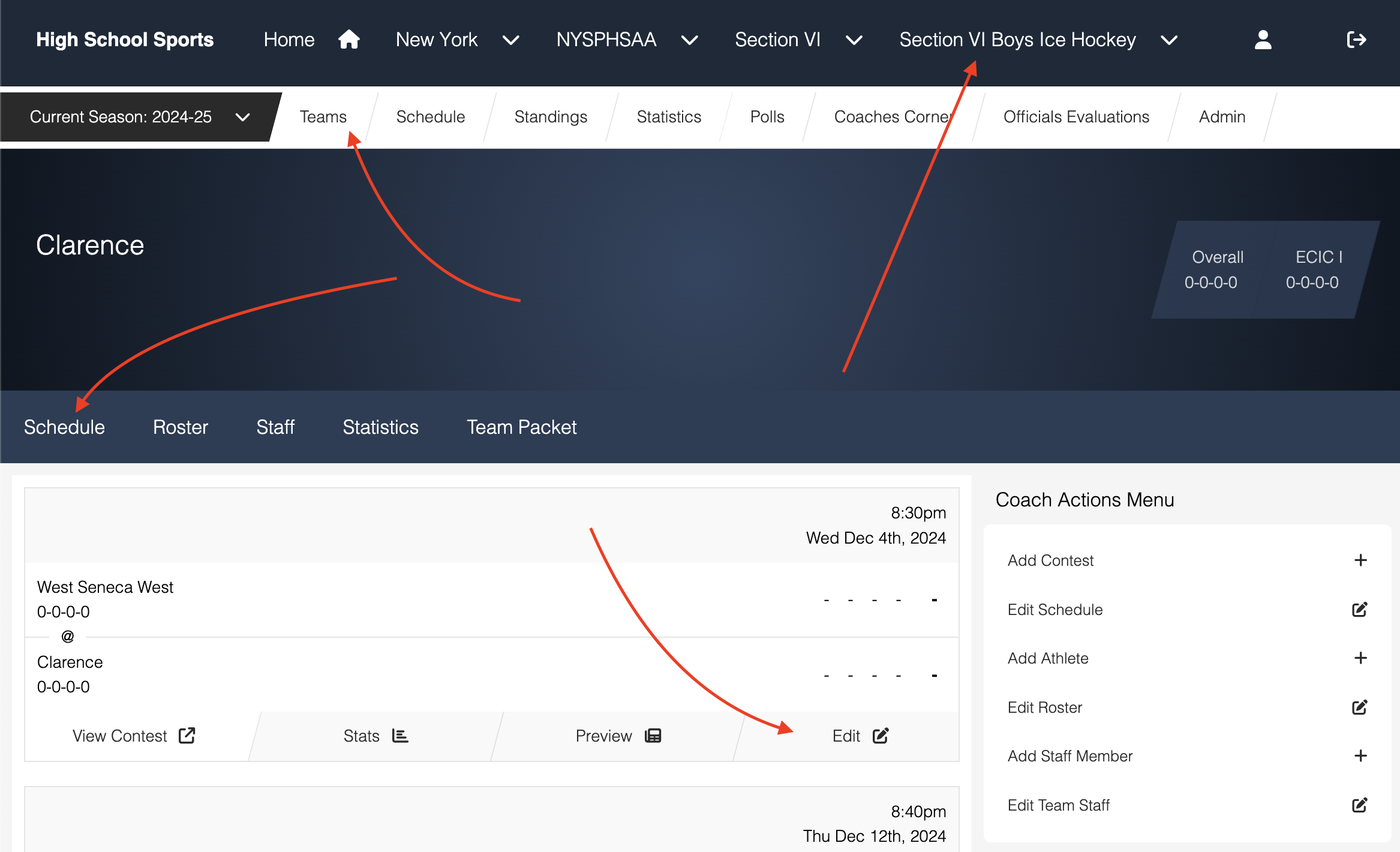
- Open Safari on the iPad and go to sectionviboysicehockey.digitalscoresheets.com
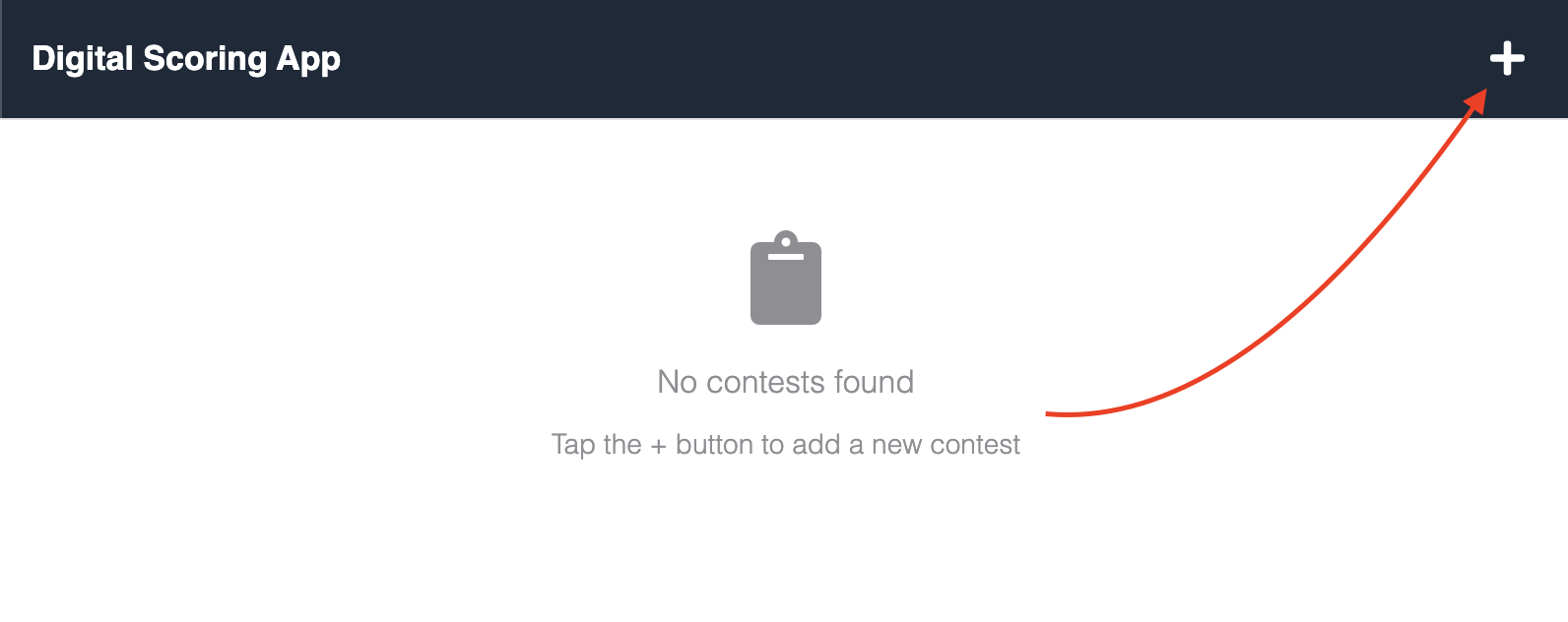
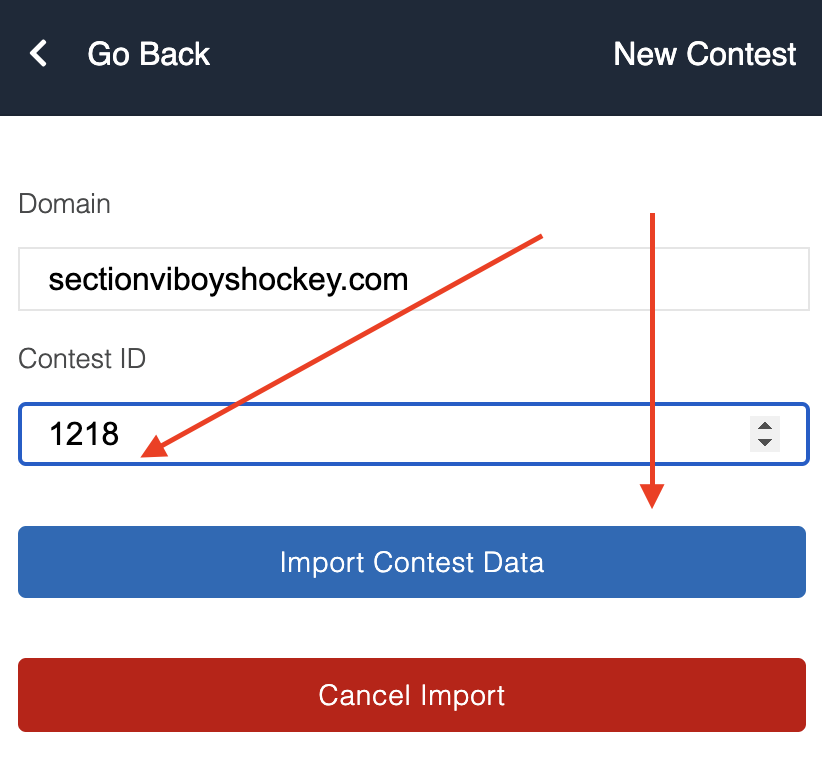
- In the top right corner, there is a blue plus icon; clicking it will open a panel that will ask for a Domain and Contest ID.
- The domain should be auto-filled for you; if it is not, please enter "sectionviboyshockey.com" (all lowercase, no spaces, no quotes)
- How to find the Contest ID
-
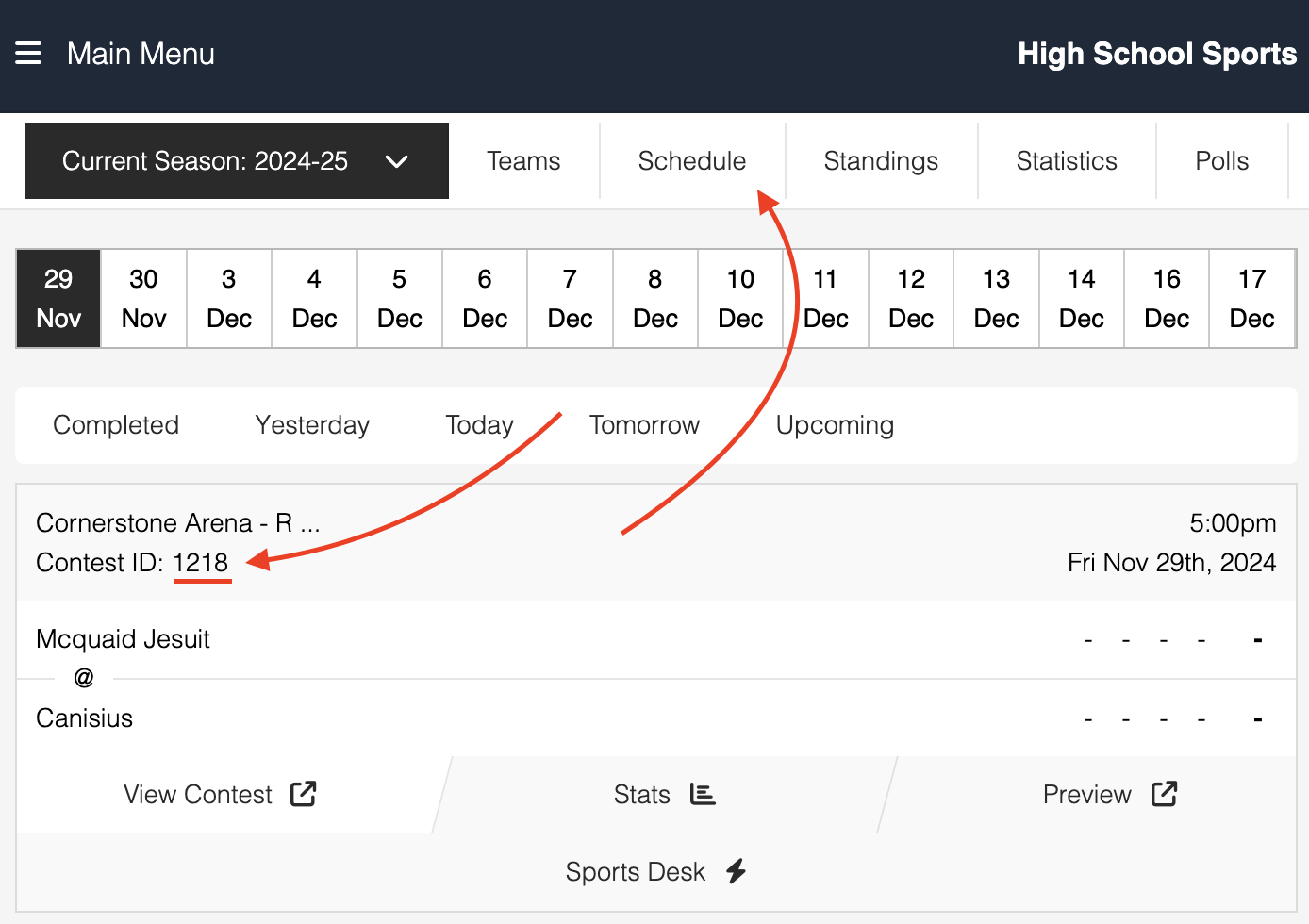
Go to the Section VI Boys Ice Hockey schedule:
https://highschoolsports.org/new-york/nysphsaa/section-6/boys-ice-hockey/2024-25/schedule
If you go to sectionviboyshockey.com we'll re-direct you there automatically so you don't have to type out the full link.
-
The contest ID is listed in the top left corner of each game widget.
- After entering the contest ID into the app, click the blue "Import Contest Data" button.
- The button text will change to "Success!", then "Re-directing..." and take you back to the app's home screen.
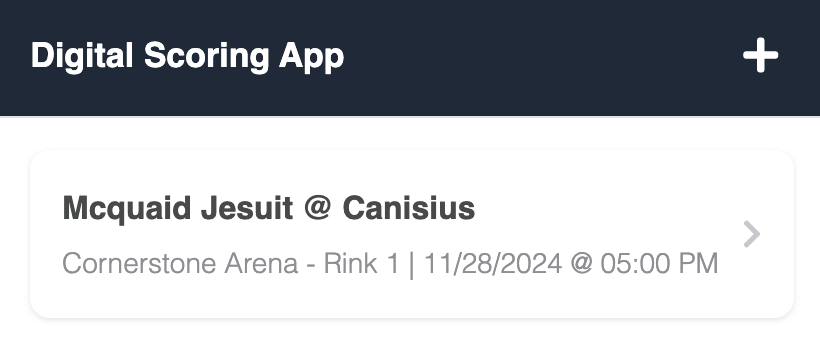
- A list of games currently on the device will be listed; click the appropriate button to open the contest you would like to score.
[Coaches] Pre-Game Protocols
!!! The iPad must be fully configured before it is handed over to the scorekeeper !!!
This includes the following items:
- The contest has been downloaded onto the device
- Updated lineups have been added to the device
- The device is fully charged
- The charging chord is included with the device
- The contest details tab is visible and ready to accept the on-ice officials and scorekeeper information.
Consider the following scenario:
- Canisius submits their roster on Monday at noon
- Lancaster submits their roster on Monday at 1pm and downloads the contest onto the iPad
- Canisius updates their roster at 4pm
- The game starts at 5pm
When the iPad is given to the scorekeeper it will still have the original lineup for Canisius.
For this reason, coaches should not load the contest onto the device until 30 minutes prior to the game. If they do, the MUST re-download the rosters.
[Coaches/Scorekeepers] How to Download the Latest Lineups for Both Teams
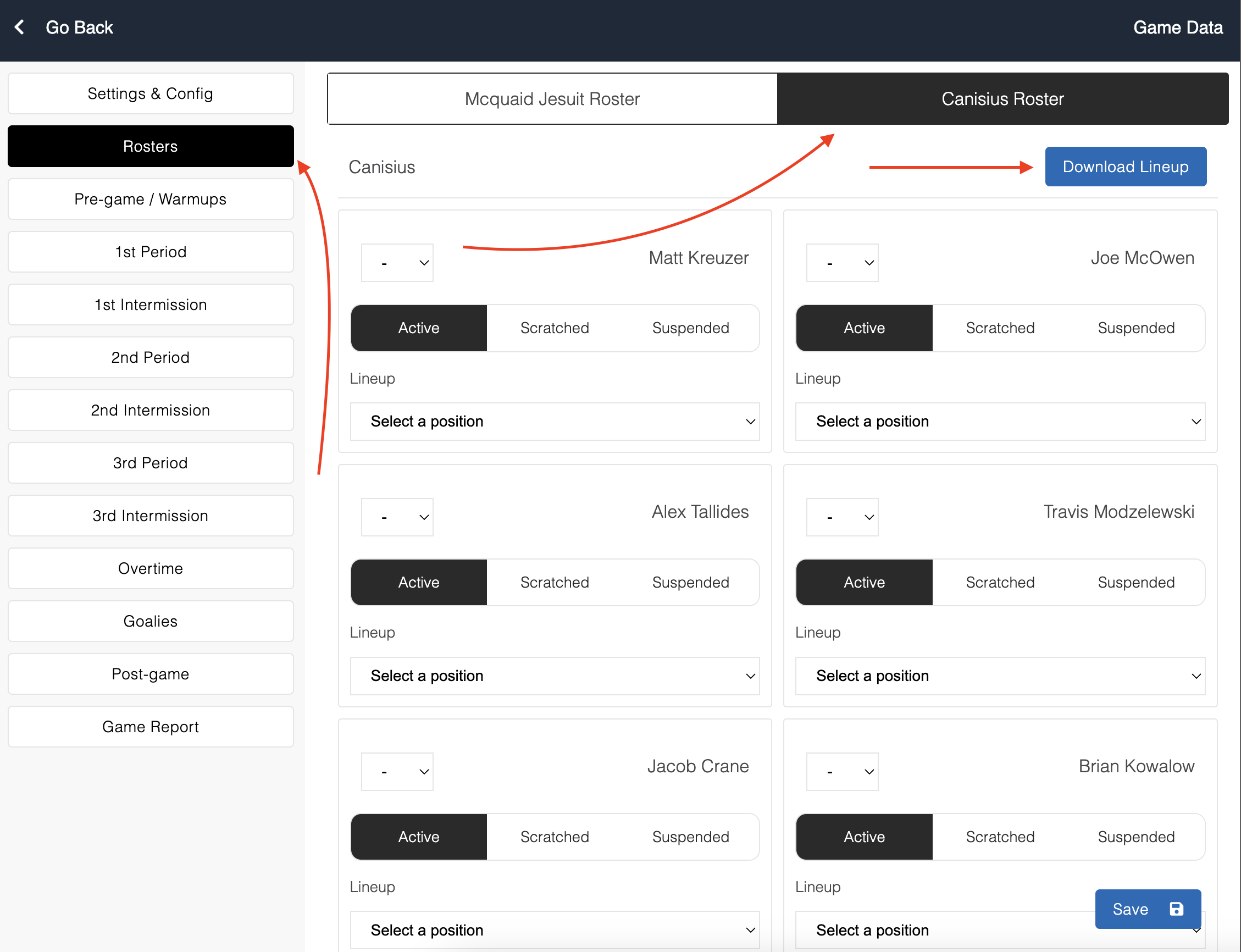
- After opening a contest, go to the roster tab
- Select the tab for the appropriate team
- Click the blue “Download Lineup” button (top right corner)
The iPad is the sole source of truth as soon as it is given to the scorekeeper.
If a coach submits a last-minute lineup change it is the responsibility of the head coach to make sure that change is reflected on the iPad.
[Scorekeepers] Settings & Config Tab
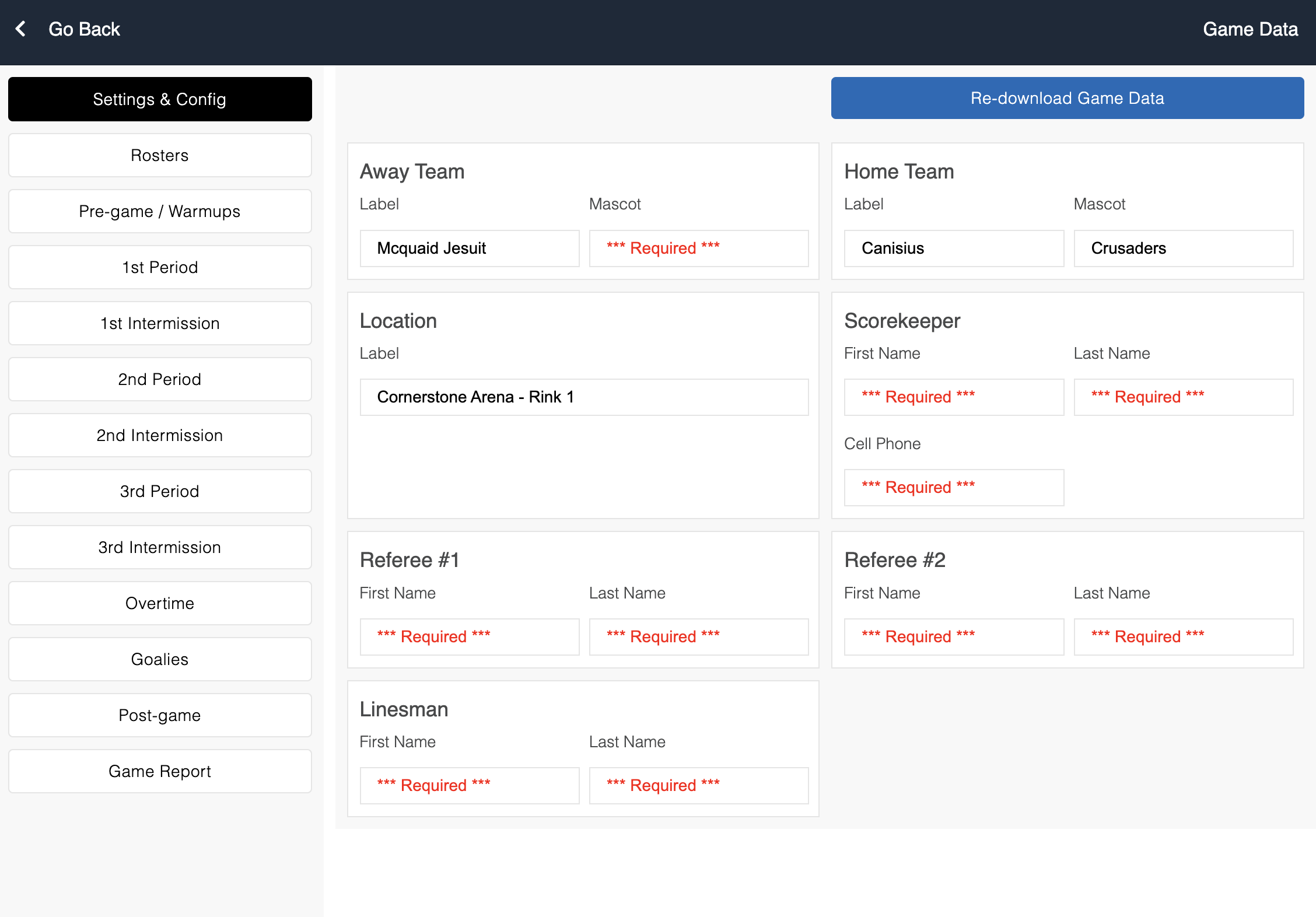
The home/away team information should pre-populate when the contest is downloaded from the website.
The scorekeeper will be responsible for entering the following information:
- Scorekeeper (first, last name and phone number)
- Referee #1 (first and last name)
- Referee #2 (first and last name)
- Linesman (first and last name)
The app will not allow the scorekeeper to proceed to the Pre-game / Warmups phase without completing this information since this information is required within the pre-game welcome script.
If you're scoring a game where a linesman is not working, you can bypass that requirement by entering random text into the fields.
[Scorekeepers] Confirming Rosters
If WiFi is available within the rink the scorekeeper should, at this point, toggle to both teams and click the blue “Download Lineup” buttons.
- This should have been taken care of already, but serves as an extra level of confirmation.
If a coach comes over with a change you can tweak jersey numbers, game status (active, scratched, suspended) or lineup slots as needed.
It is not necessary to enter 2nd, 3rd and 4th lines.. the only lineup slots that are used currently are 1-LW, 1-C, 1-RW, 1-LD, 1-RD and 1-G
What do we do if one of the teams are missing a roster?
If a Section VI team is playing a non-Section VI team we will likely not have a roster available.
The app will work without this information - however, be sure to collect the necessary lineup information for the pre-game announcements.
[Scorekeepers] Tab Overview: Pre-game / Warmups
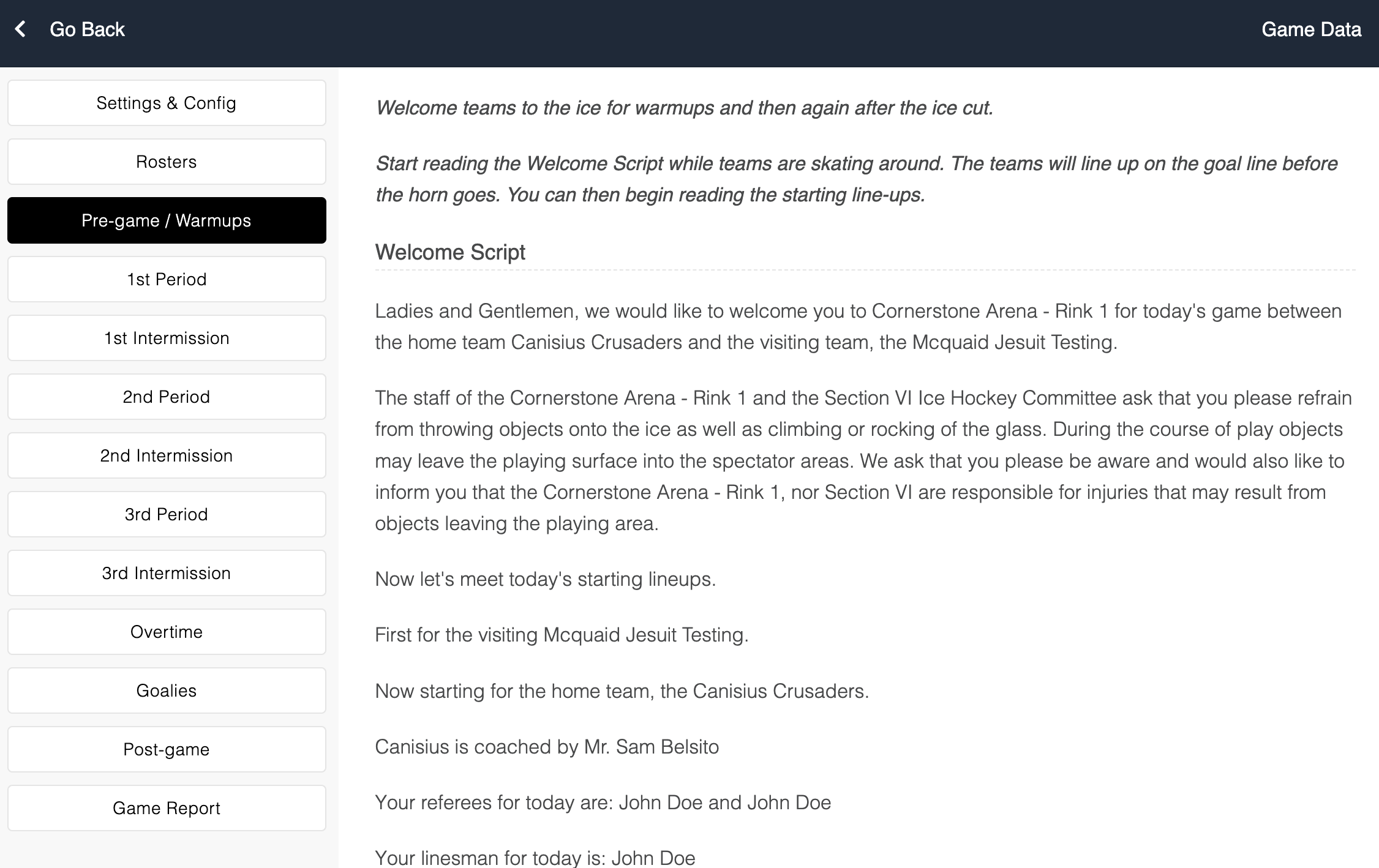
This tab contains the script that is required to be read during pre-game announcements.
The app will use the information in the previous tabs to adjust it to the teams playing, starting lineups, etc.
If for some reason the National Anthem is not available, please recite the Pledge of Allegiance.
[Scorekeepers] Tab: 1st period, 2nd period, 3rd Period, Overtime
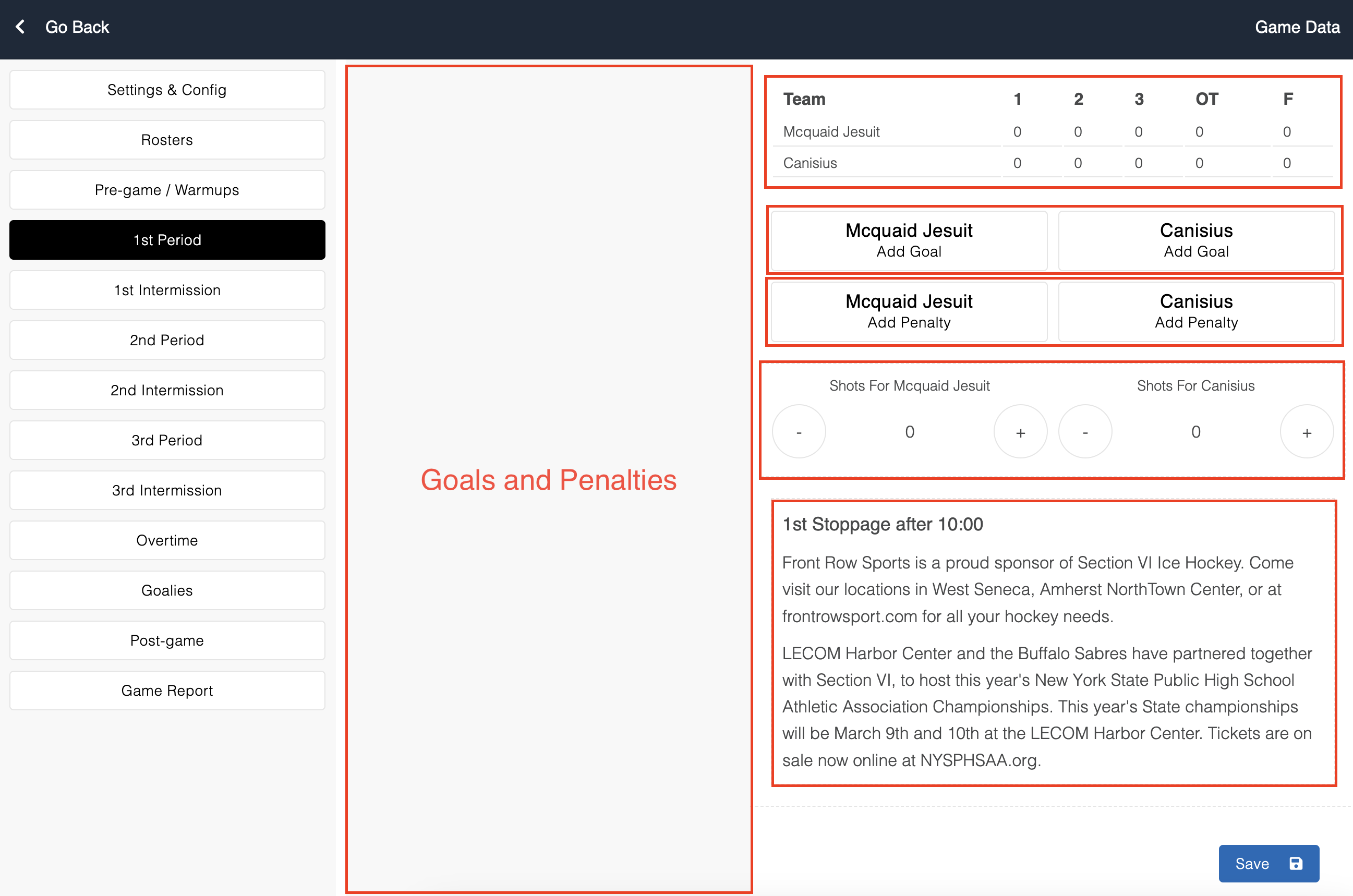
Most of your time will be spent in these tabs.
The left column will contain a list of goals and penalties that have occurred within the period.
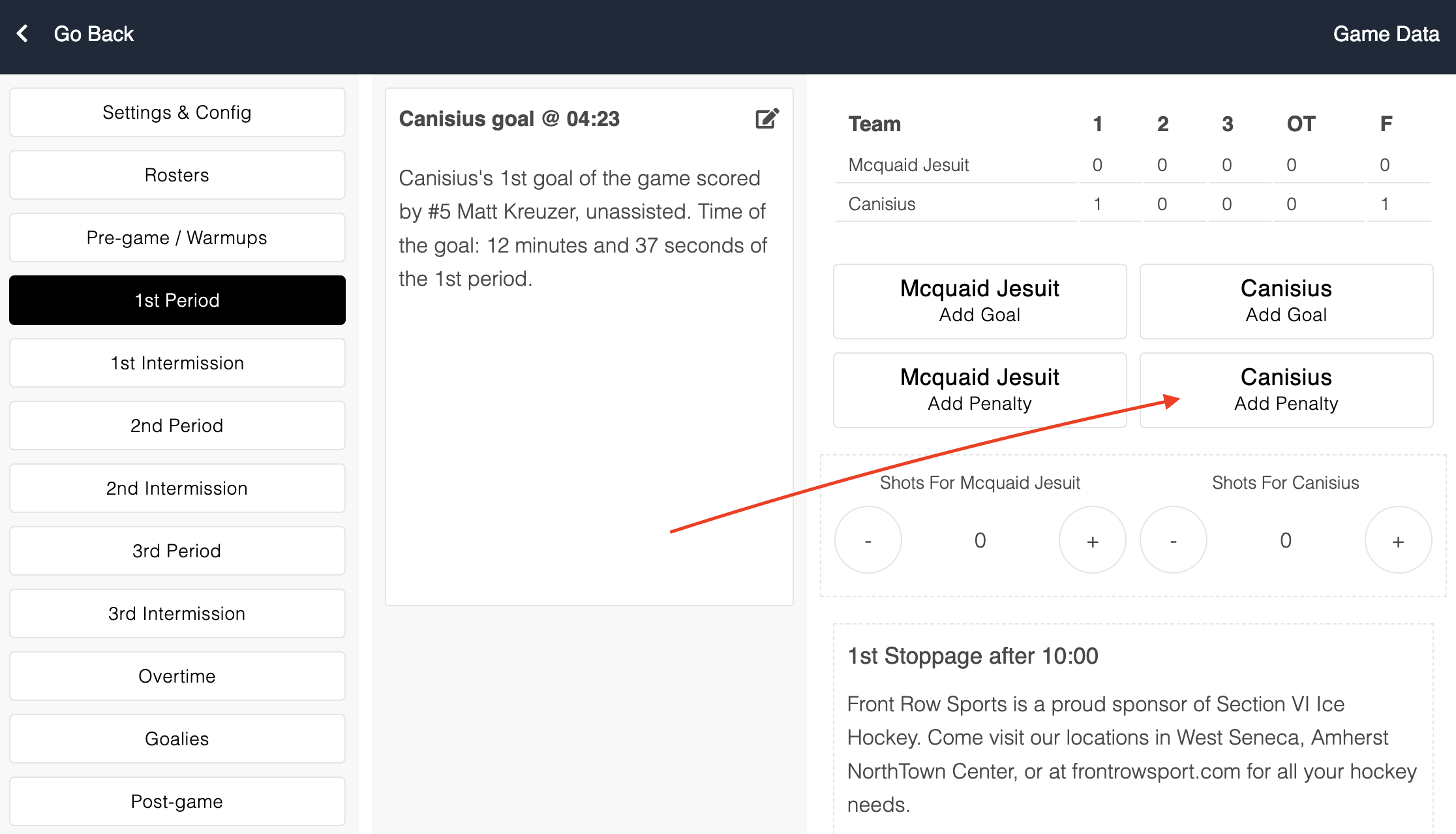
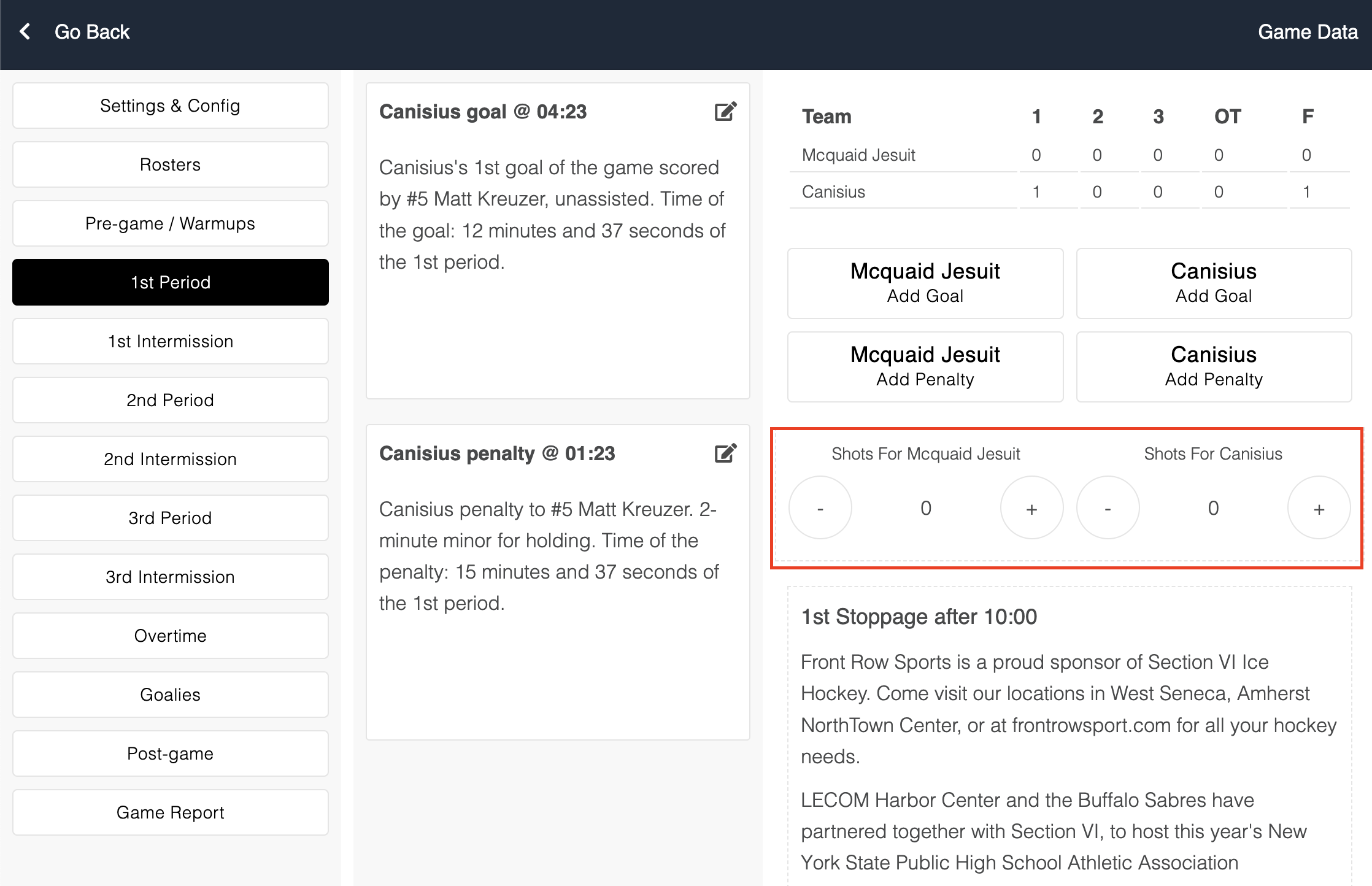
On the right column you will see the boxscore, buttons to add goals, penalties for the home/away teams, and four shot buttons (plus/minus for home/away teams)
If there are any ads that must be read during the period, these will be visible within that tab.
[Scorekeepers] Tab: 1st Intermission, 2nd Intermission, 3rd Intermission
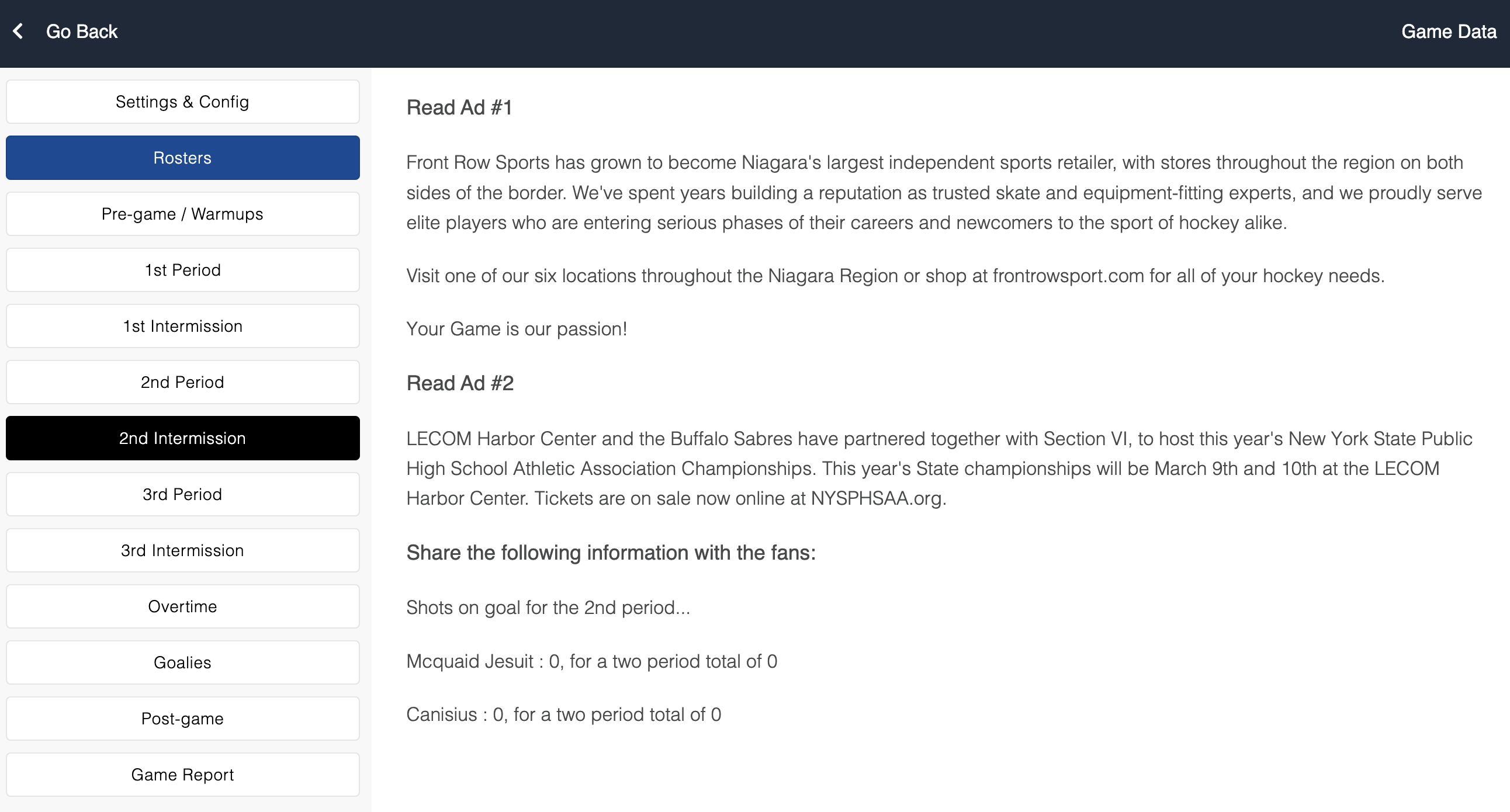
At the start of each intermission please be sure to read the necessary announcements.
The script for each phase of the contest will be written here, including an announcement regarding the shots on goal for each team thus far.
[Scorekeepers] How to Add a Goal
-
When the on-ice official comes over, write the goal information down in a paper notepad.
-
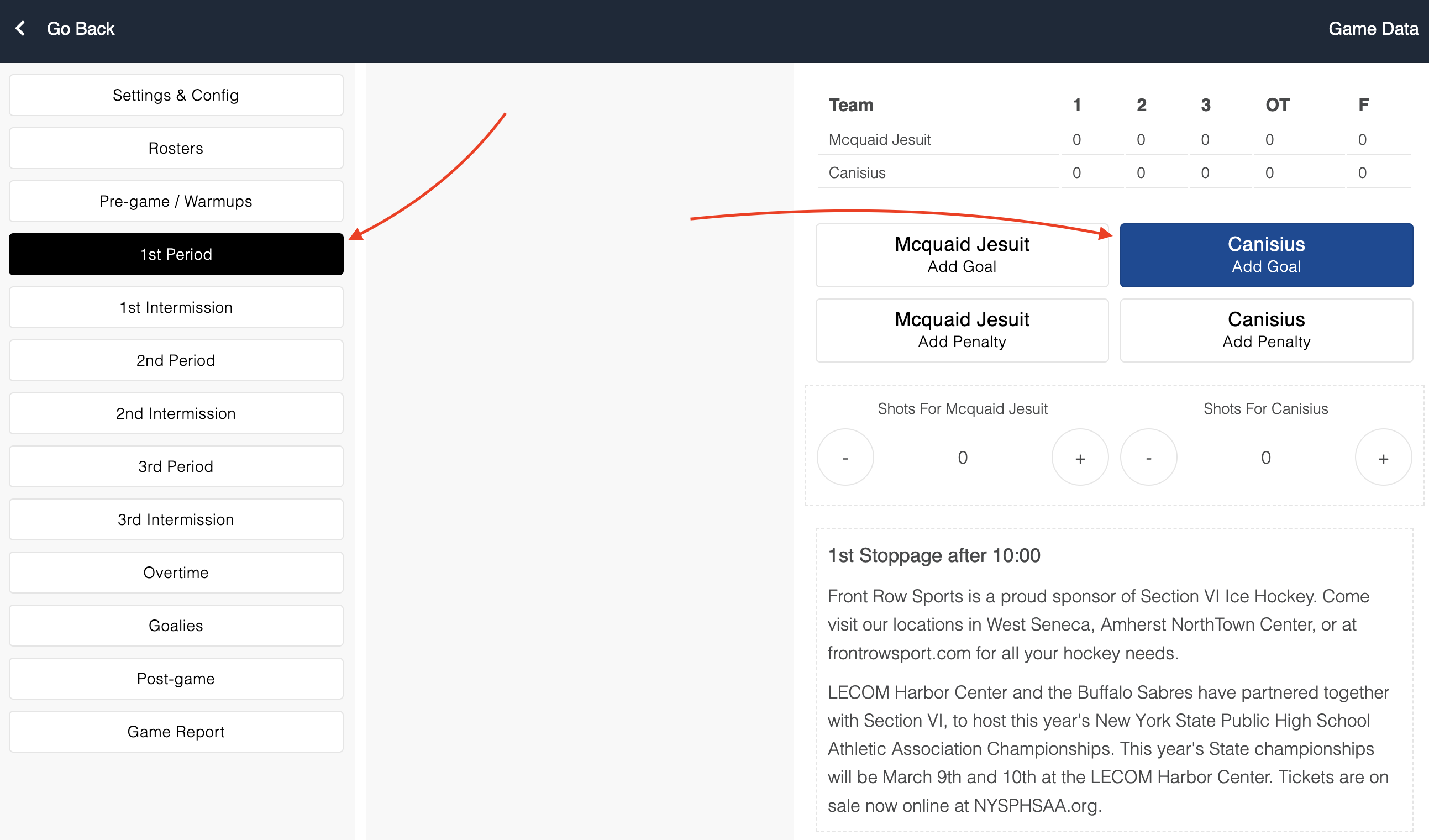
Within one of the period tabs, there are two buttons to add a goal. One for the home team and one for the away team.
After clicking one of these buttons, a goal will be created in the moments column and immediately open the goal editor (this will slide in from the right).
If you accidentally hit one of the Add Goal buttons you can click the “Delete Goal” button all the way down at the bottom to undo this.
-
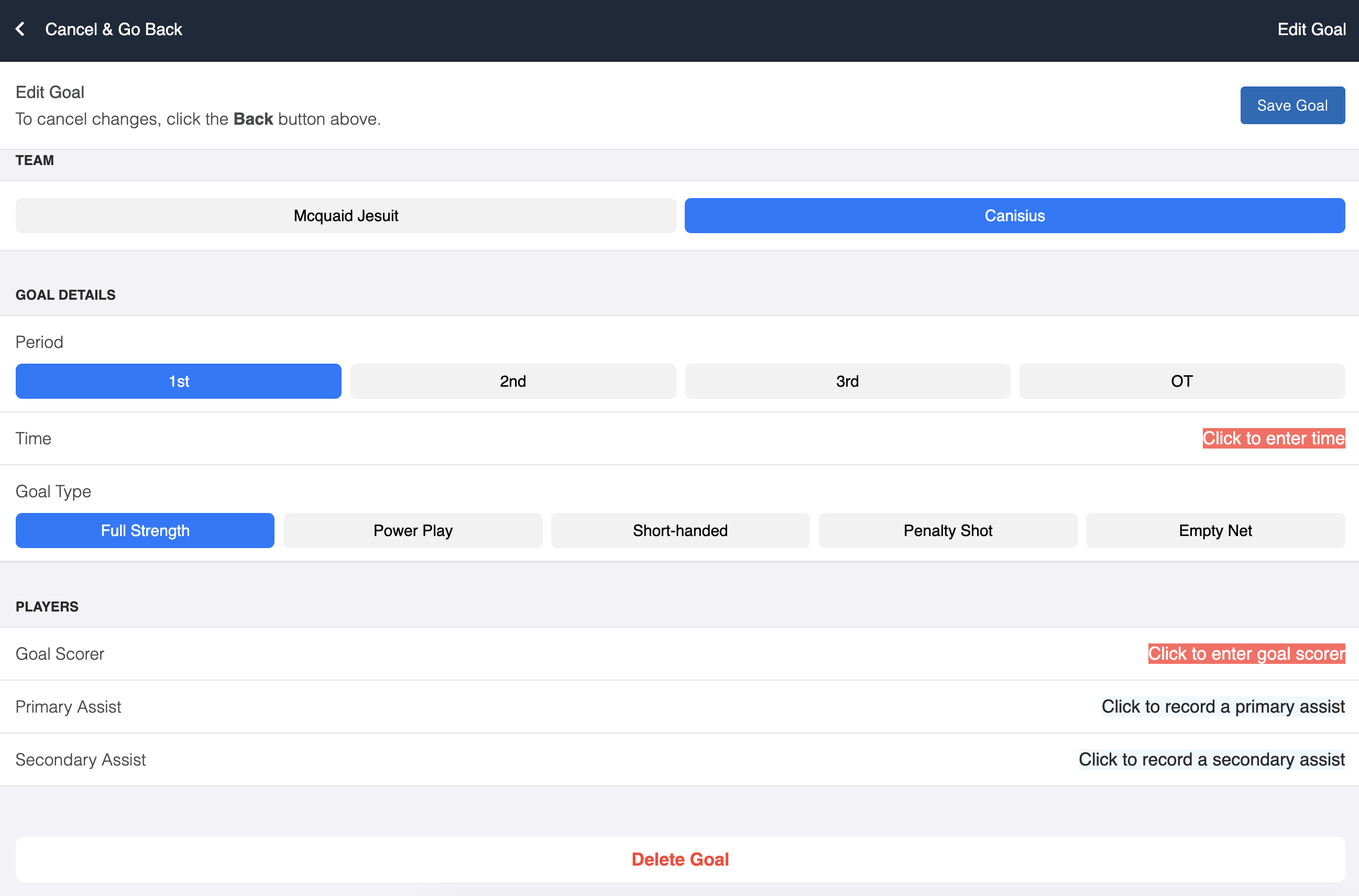
The period will be auto-filled with that of the period you are currently working within.
-
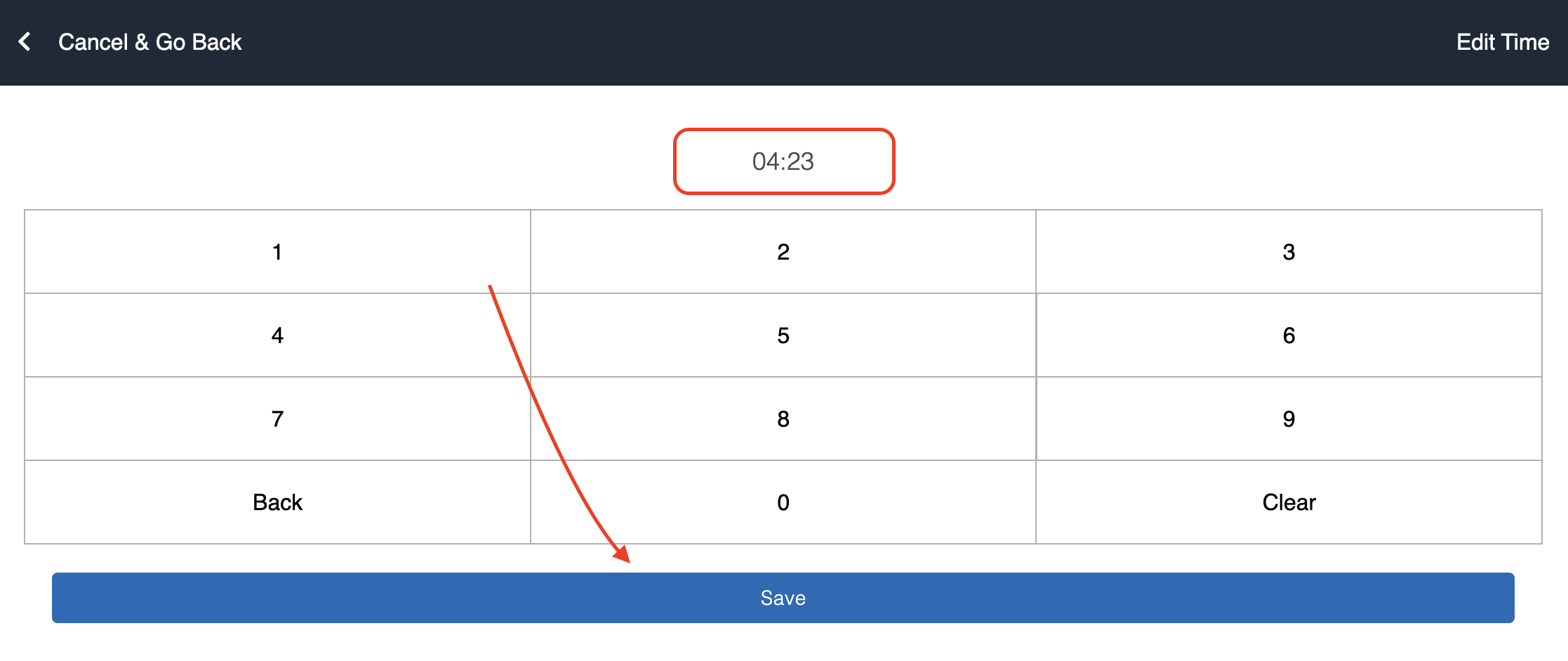
Click on the "Time" row - you should see a red “Click to enter time” button if this is blank.
After punching in the time, click the blue "save" button. If you made a mistake you can click the “Cancel & Go Back” link in the top left corner.
-
If necessary, select the appropriate Goal Type (this will default to Full Strength)
-
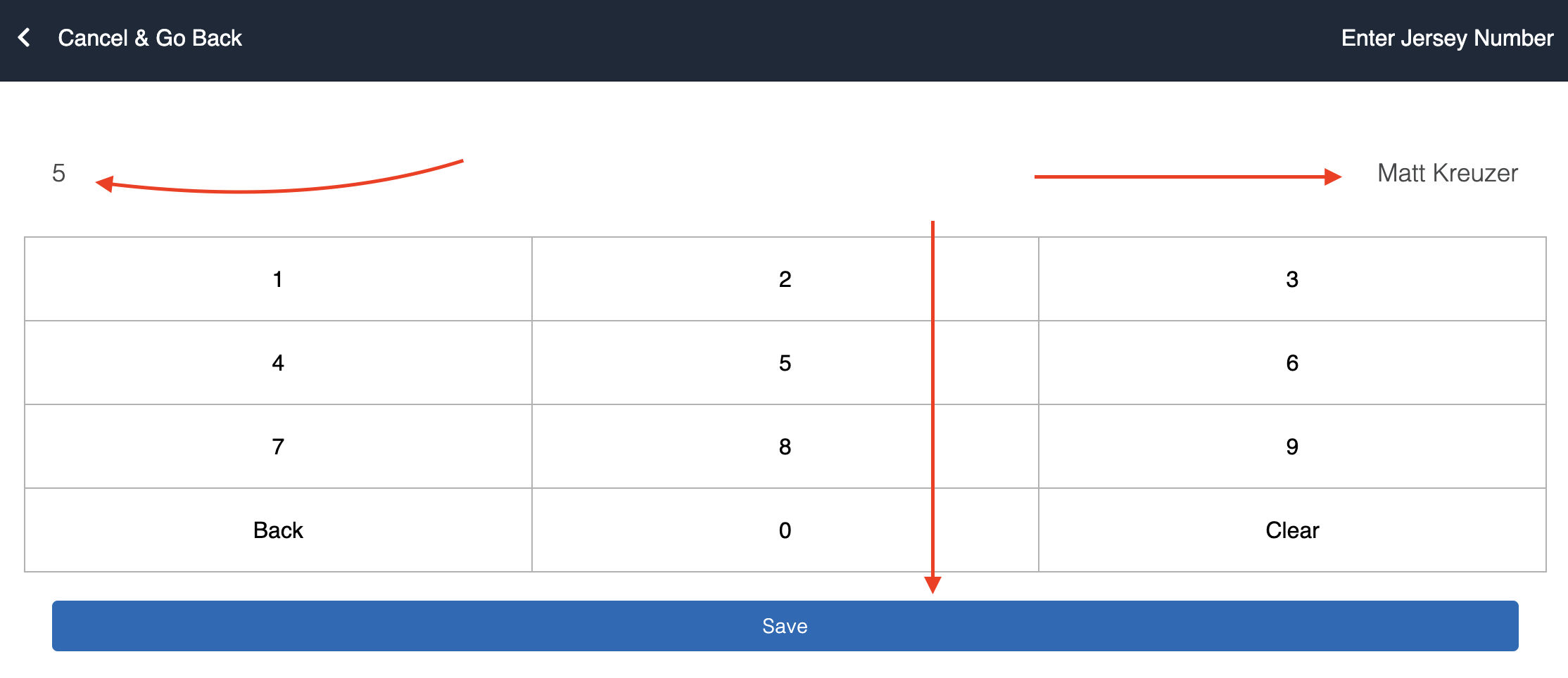
In the Players section, click on the red “Click here to enter goal scorer” button.
Punch in the jersey number of the player; if it matches a player on the roster you will see their name appear.
If no name appears, the app will still allow you to save the data.
The only noticeable difference will be the goal script.. it will say something like “goal scored by #5” instead of “goal scored by #5, Jack Davis”
-
If applicable, enter a jersey number for the Primary Assist.
-
If applicable, enter a jersey number for the Secondary Assist.
-
When finished, click the blue “Save Goal” button.
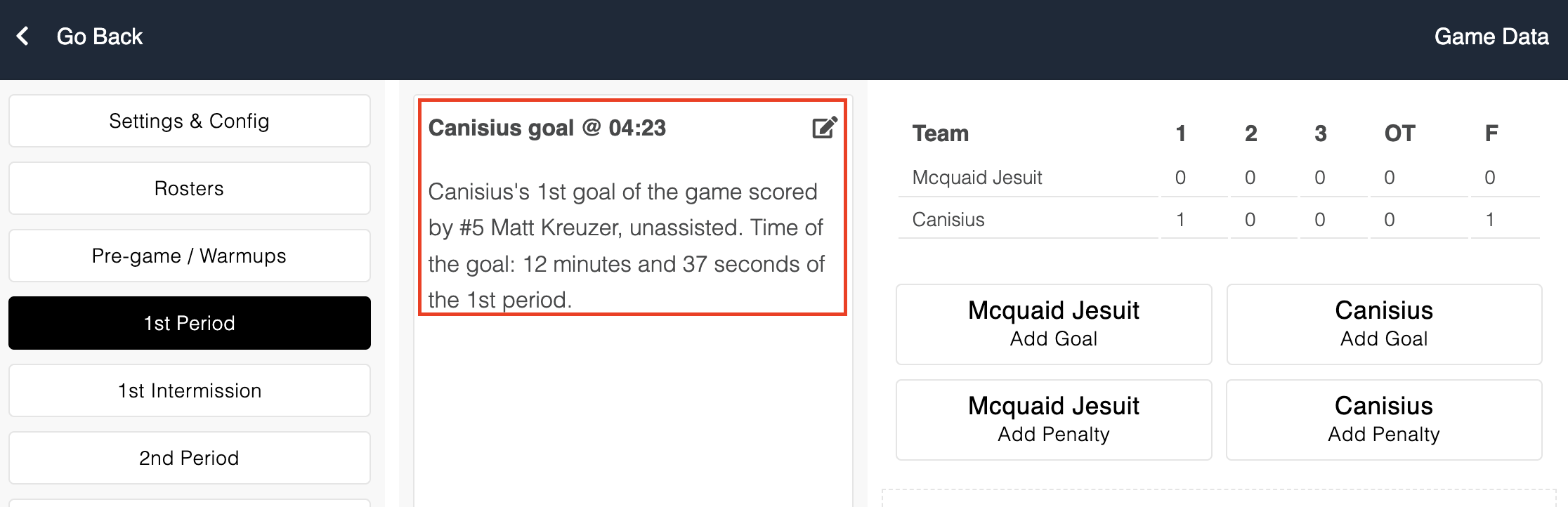
This will update the boxscore in the period tab and tweak the goal announcement script as necessary.
-
When time allows, please read the goal announcement. This can be found in the moments list within the period tabs.
[Scorekeepers] How to Edit a Goal
If goal information needs to be changed you can click on the relevant goal within the moments column.
When your changes have been entered, click the blue “Save Changes” button.
The tab that will open to edit a goal is identical to the tab used when creating a goal.
[Scorekeepers] How to Delete a Goal
Click on a goal in the moments column.
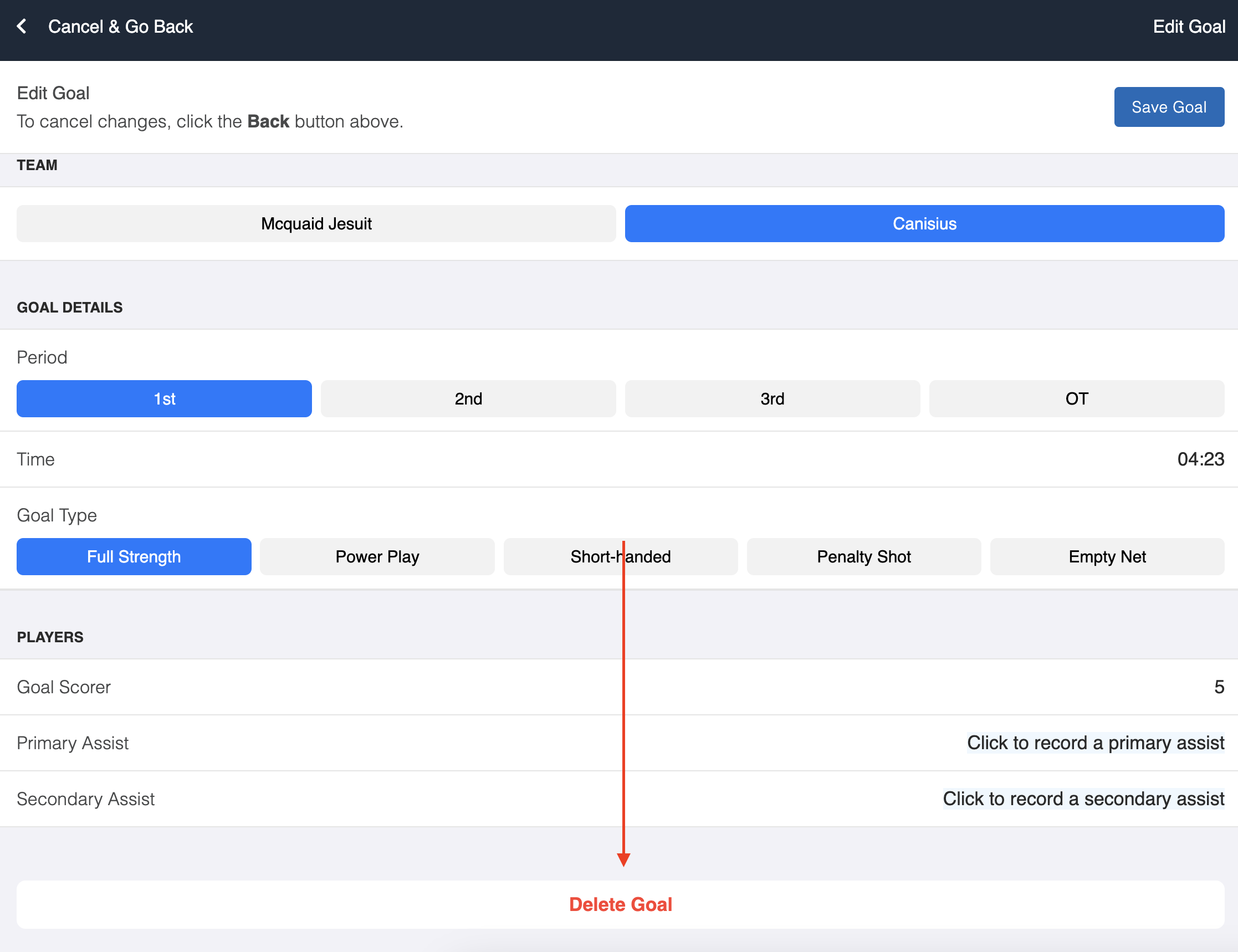
Scroll down to the bottom of that form and click the “Delete Goal” button.
This cannot be undone; if you accidentally delete a goal, you can fix this by adding a new goal with the correct information.
[Scorekeepers] How to Add a Penalty
-
After the on-ice official reports the penalty and athlete jersey number, write it down in a paper notepad.
-
Within one of the period tabs, click the appropriate “Add Penalty” button for the home or away team.
This will open a tab similar to the goal tabs, but specific to penalties.
-
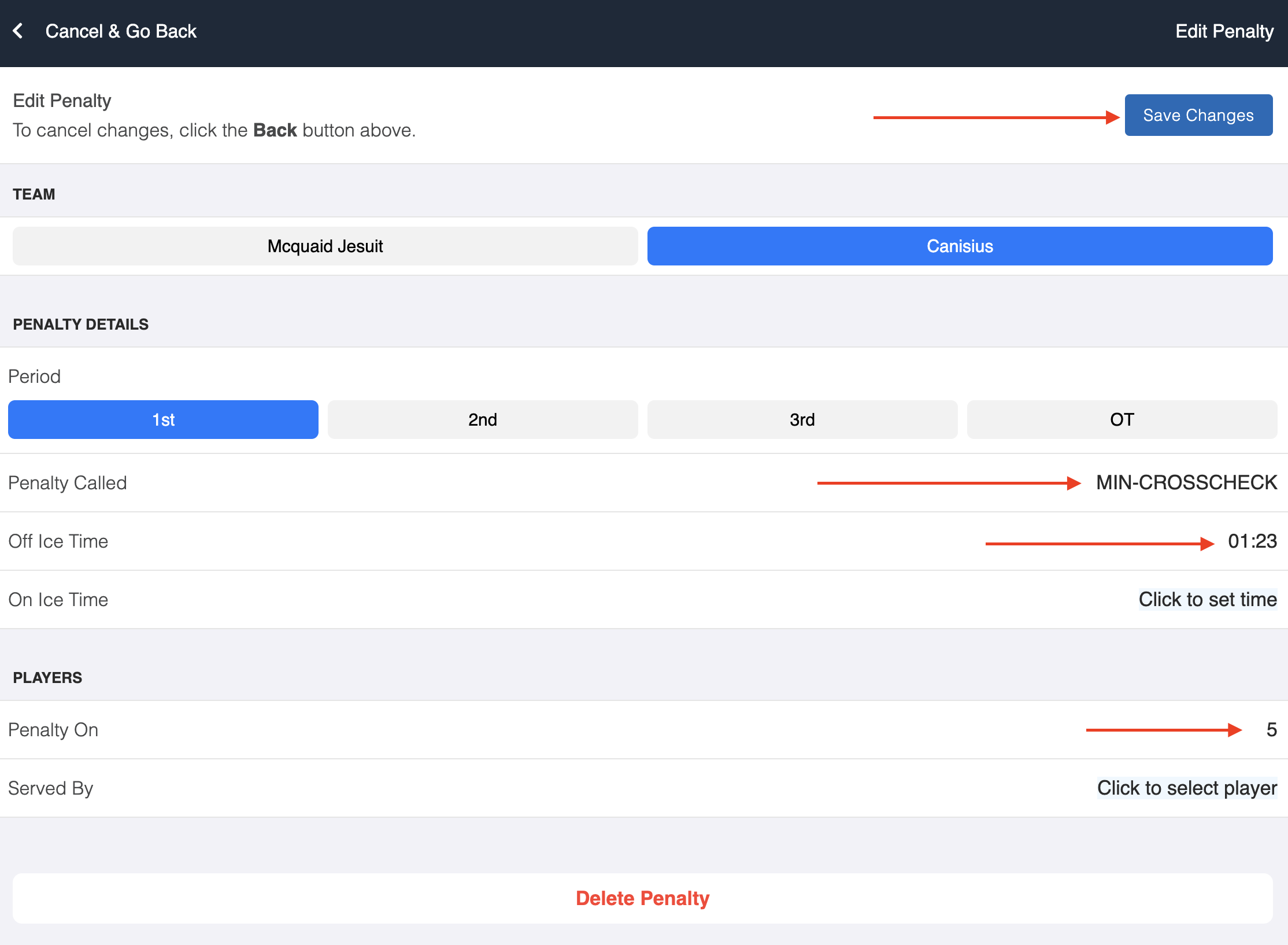
If necessary, you can toggle the team.
-
The period will auto-fill with the period from the current tab that is opened.
-
Click on the "Penalty Called" row.
This will open a list of pre-loaded infractions you can choose from.
If the infraction called is not listed, select the closest infraction and let Matt know there is something that needs to be added to the list for future games.
-
Click on the "Off Ice Time" row; punch in the time as it is seen on the scoreboard, then click the blue "Save Time" button.
-
Once the information is correct, click the blue "Save Penalty" button.
-
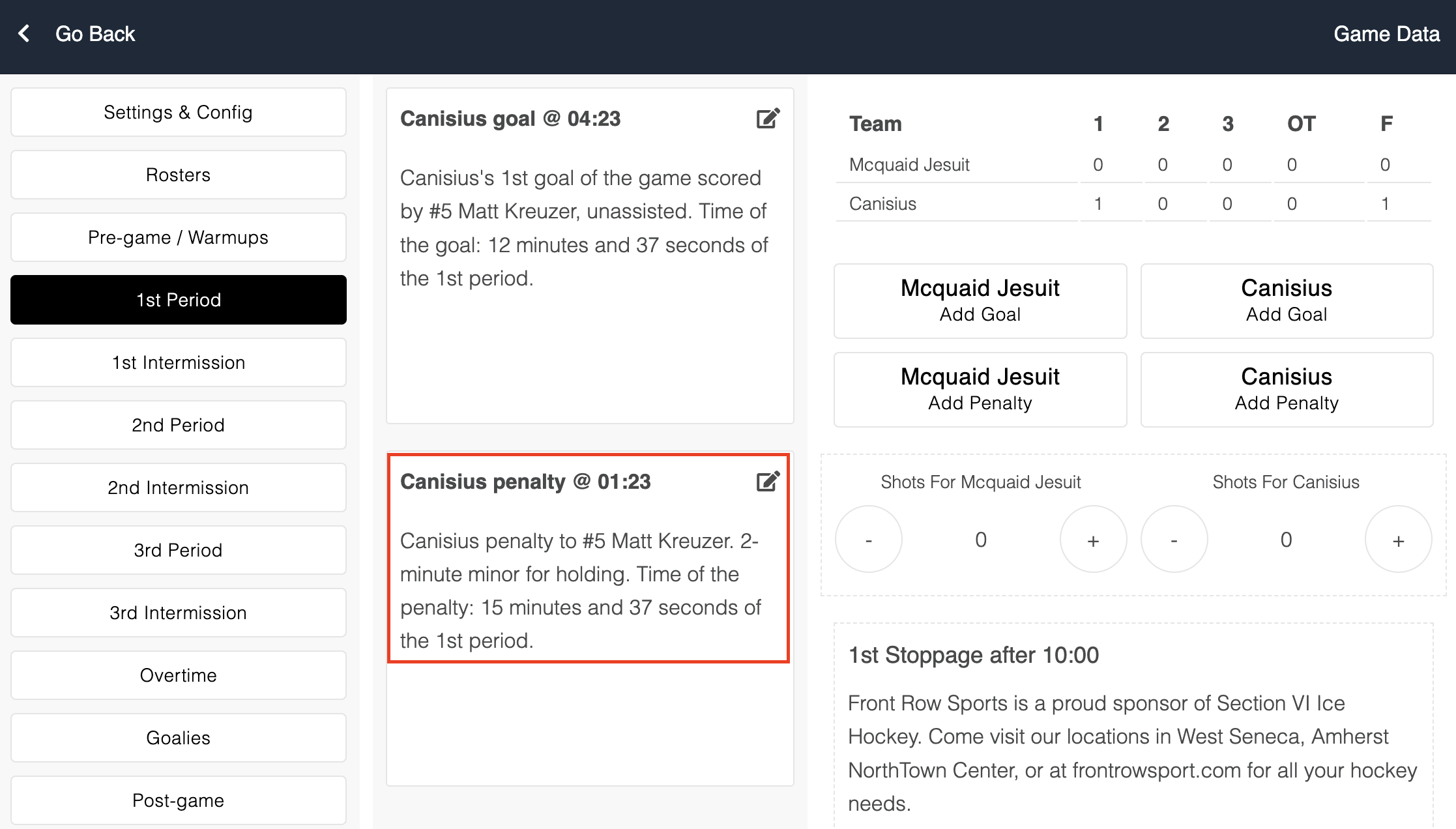
When time allows, read the penalty announcement as it reads within the moments column of the period tab.
[Scorekeepers] How to Edit a Penalty
If penalty information needs to be changed you can click on the relevant infraction button within the moments column.
When your changes have been entered, click the blue “Save Changes” button.
The tab that will open to edit a penalty is identical to the tab used when creating a penalty.
[Scorekeepers] How to Delete a Penalty
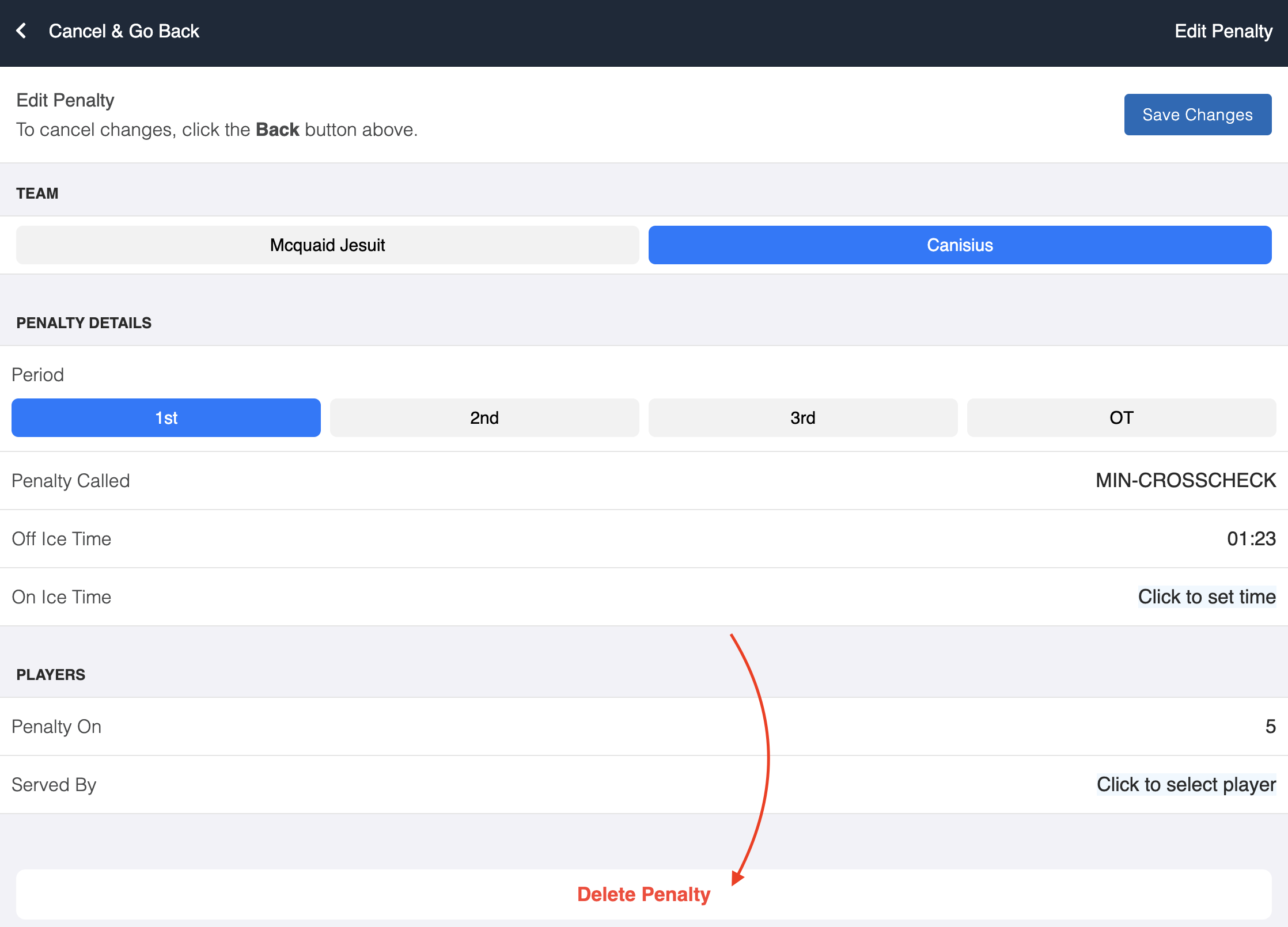
If a penalty needs to be deleted, please open it within the moments column by clicking on it.
Scroll down to the bottom and click the "Delete Goal" button; this cannot be undone.
If a penalty is removed in error, you can fix this by adding a "new" penalty.
[Scorekeepers] Recording Shots
Inside of each period tab there four buttons (plus/minus for both the away/home teams) that will allow you to control the shot count.
The shots recorded here are for Shots on Goal only.
Shots that would not have otherwise scored a goal had the goalie not intervened should not be counted.
Shots on Goal do not have to be recorded as they happen; they can be entered when a period wraps up.
If WiFi allows we're going to try and provide in-game updates to fans who are not present, and updating the shot counts during the period would be appreciated.
Of course, this is secondary to announcements and in-game advertisements.
[Scorekeepers] In-Game Advertisements
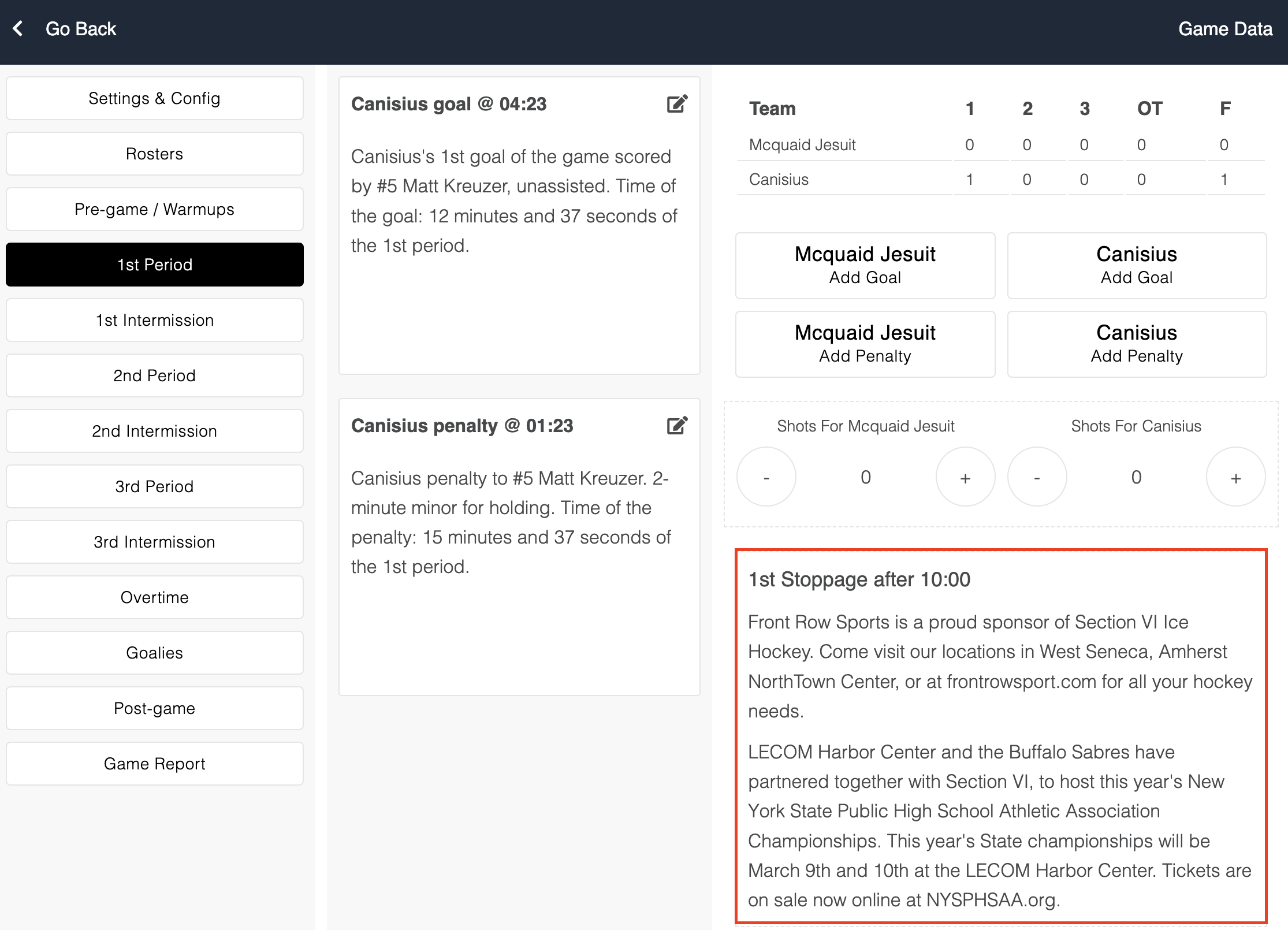
Within the period tab, on the right-hand side we will list any advertisement scripts that must be read over the Public Address system.
You can read these as is at the 1st stoppage after the 10:00 minute mark of the period.
If the 1st stoppage of play after 10:00 is for a goal or penalty, be sure to read off that information first.
The advertisements can be read at the subsequent stoppage when time allows.
During intermissions there will be two advertisements to read; afterwards, the system will provide you with the shots on goal announcement.
[Scorekeepers] Entering Goalie Statistics
-
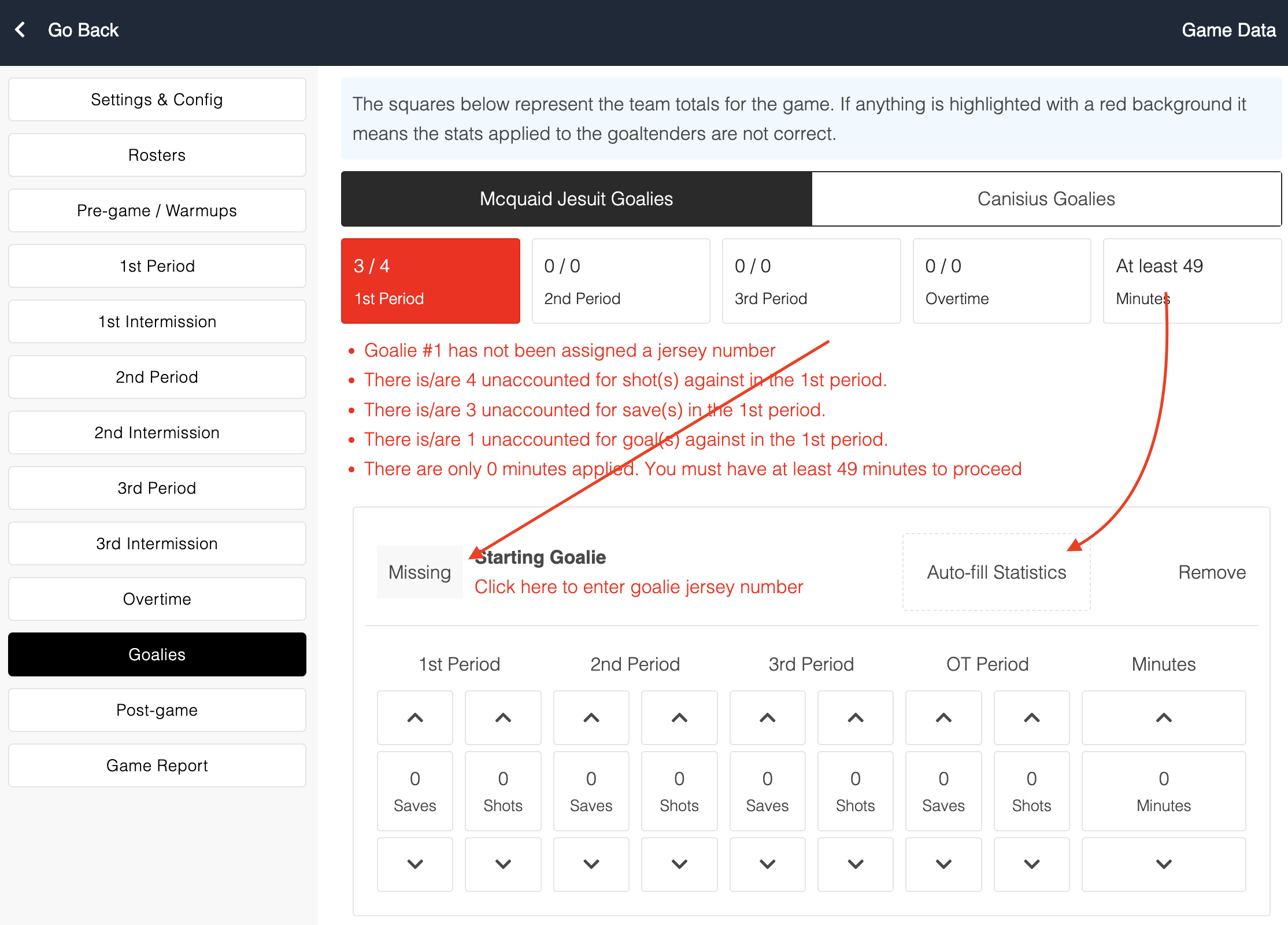
After the game concludes, click on the "Goalies" tab.
-
Click on the "Starting Goalie - Click here to edit" button.
After punching in the jersey number, click the blue "Save" button.
-
Click the "Auto-fill Statistics" button (top middle of the goalie row)
This will use the shot counts that you've entered in the period tabs and goals to calculate what the goalie stats should be.
-
If multiple goalies played in the game, click the blue "Add Goalie" button (located beneath the starting goalie section)
You can adjust the individual statistics as needed using the up and down chevrons
-
If there are any errors, they will appear near the top of this tab in red text.
All shots and goals against must be accounted for in order to finalize the game report.
[Scorekeepers] Finalizing the Game Report
-
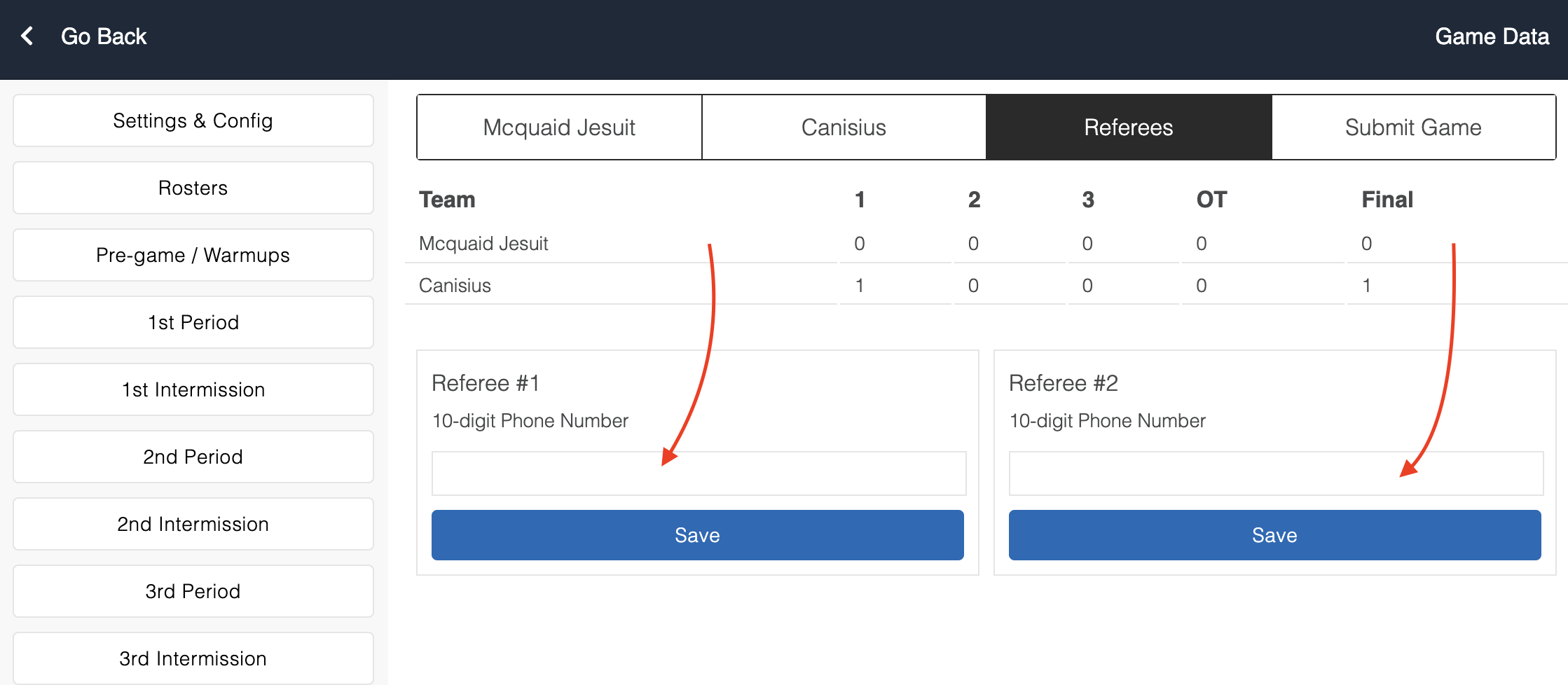
After goalie stats have been recorded for both teams, click the "Game Report" button and select the "Referees" tab.
-
The scorekeeper will collect signatures from the on-ice officials after the game concludes.
Their signature will be their phone numbers to make sure we have them on file in case there was an issue of some sort.
-
Coaches will not be signing the score sheet immediately following the handshake line.
-
-
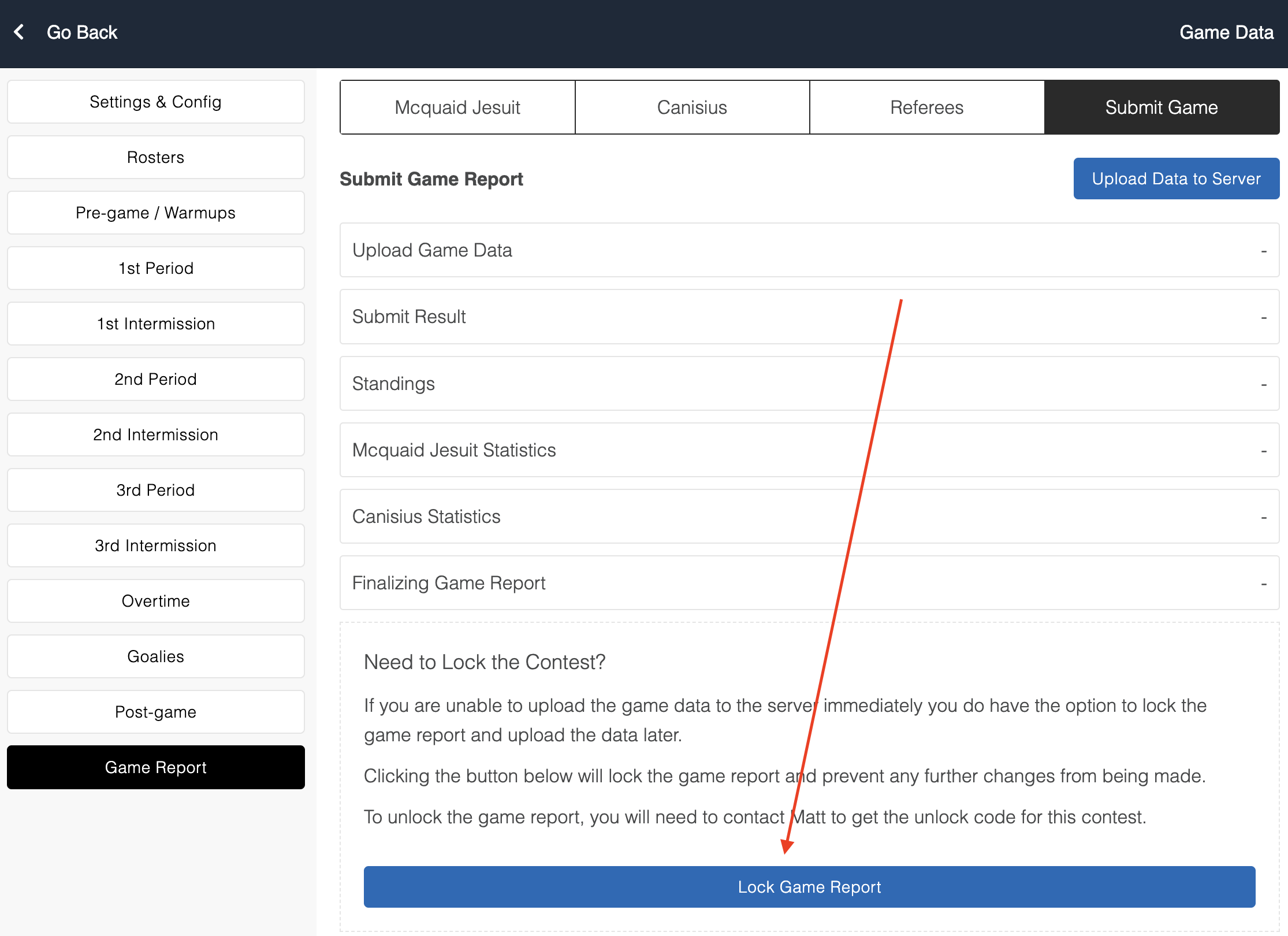
After both on-ice officials have signed the scoresheet, open the "Submit Game" tab.
At the bottom of this tab there is a section to lock the contest data on the device.
Clicking the blue "Lock this Contest" button will ensure the only action that can be taken from that point on is the ability to upload the game data to the server.
If the game data needs to be unlocked for some reason, please contact Matt to get the contest-specific lock code
-
The act of locking the contest data and handing the iPad to the head coach will be the "signature" of the individual scoring the game.
The scorekeeper's phone number will have been recorded during the pre-game, and if there are any issues with the information submitted we'll call that number.
[Coaches, NFOA] Submitting the Game Report to the website
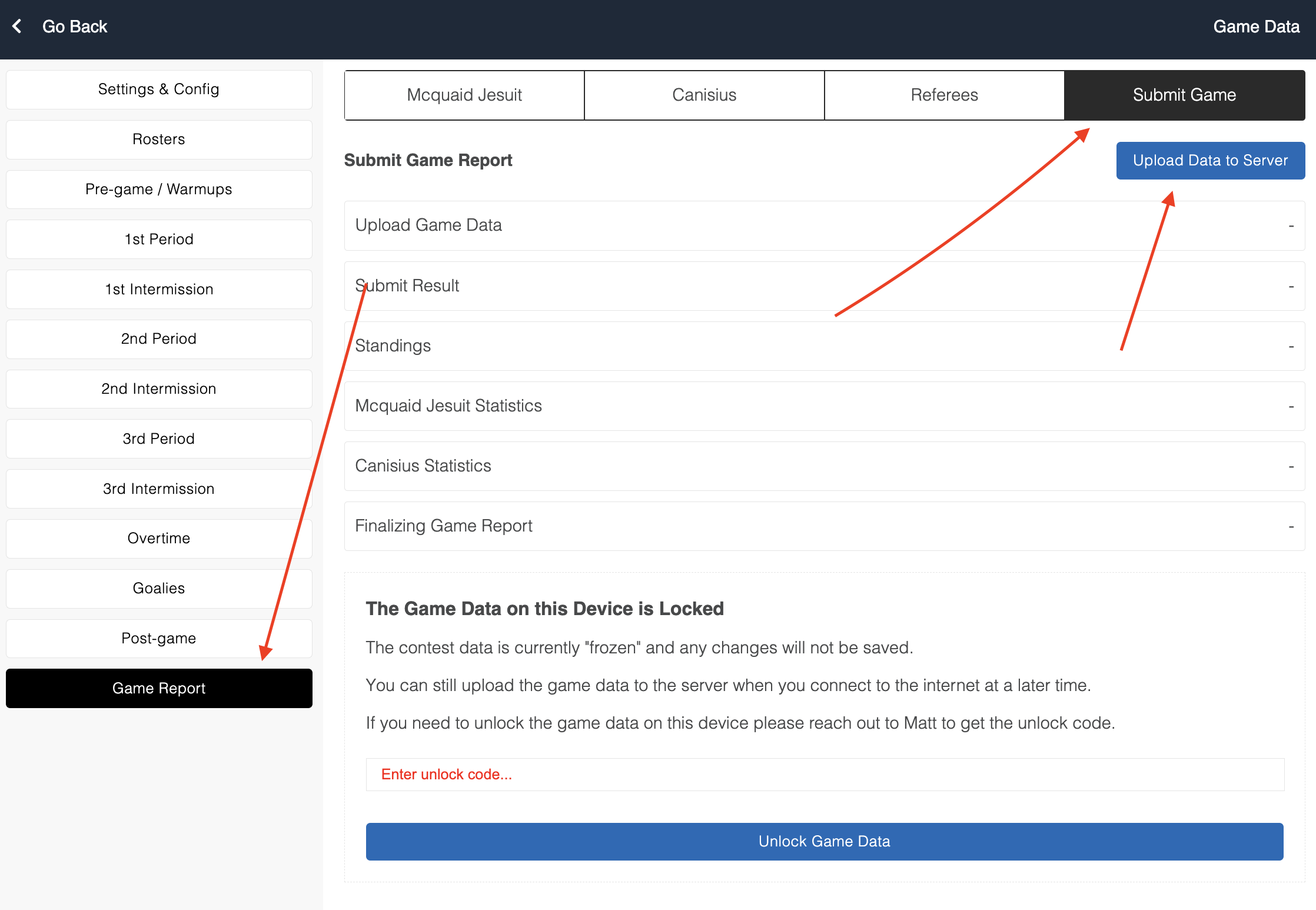
- This section does not apply to HarborCenter; they do not have WiFi issues and can go ahead and submit the game data for you.
At any other rink, submitting the game report data is the sole responsibility of the team who supplied the iPad.
-
The head coach is responsible for connecting the iPad to WiFi and submitting the game data as soon as possible.
-
If the game is played at a rink with WiFi, please do this immediately.
-
If you are in a black hole as far as internet is concerned, a personal hot spot can be used (the data required to upload a contest is minimal as it's just a bunch of text).
-
If you are unable to do this, please take care of this as soon as you get home.
-
Upon submitting the game data...
-
An email will be triggered to Rick Brooks with the summary
-
Emails will be triggered to both head coaches requesting their signature
-
These emails will contain a link to review the game data; links are specific to the contest and team, there is no need to login and this can be done from your phone.
-
There's a blue button at the bottom to submit your digital signature.
-
After both coaches have signed the score sheet the system will submit the official result and update the standings/statistics tables.
-
-
After the game data has been uploaded to the server, it will be visible to fans immediately. There will be a "pending - coach verification required" tag visible until both coaches have signed off on the data.
-
If there is only one Section VI team, the system will only require one signature before accepting the result as "Final".
Before signing the score sheet, confirm that all goals and assists have been accredited correctly.
If there is a mistake, you MUST contact Rick Brooks immediately, and directly, with the correction. He is the only individual authorized to adjust game data that has been verified by the scorekeeper and on-ice officials.
[Scorekeepers, Coaches] Misconduct Reports
These will be submitted through the website instead of the app.
In past years, this was submitted through the app, which would hold up everything else while the on-ice officials entered their game notes.
By moving this outside of the app everybody can get out of the rink when they’re finished in the locker room and the scorekeeper can get prepped for the next game immediately.
When a misconduct report is submitted
- An email will be sent to Rick Brooks.
- Both coaches will receive a copy of the report.
- The official submitting the report will enter their email address so they can get a copy as well.
We will send this information to the on-ice officials so they're aware of the new protocol.
[Scorekeepers, Coaches] When Protocols are Broken
-
If an iPad is not supplied with a charging chord, and the battery dies, leading to the scorekeeper being unable to enter the game data on the device...
- The scorekeeper will take a picture of the game notes and text them to the head coach. It will be the home team's responsibility to enter and submit the game data.
-
If an iPad goes to sleep and is unable to be unlocked through the code "1776"...
- The scorekeeper will take a picture of the game notes and text them to the head coach. It will be the home team's responsibility to enter and submit the game data.
-
If the home team followed all iPad protocols and the game data is not complete
- It will be the job of the scorekeeper to go home, hop on a computer and submit the information to the website.
-
If the iPad crashes due to a defect of some sort outside of their control
- The scorekeeper will take a picture of the game notes and text them to the head coach. It will be the home team's responsibility to enter and submit the game data.